Free online PDF editor
Online PDF Editor – Edit PDF Files Faster Than Ever
Change text, add images and signatures, fill forms, annotate and rearrange pages. Your file never leaves your device.
- Nothing uploaded
- No signup
- No watermark
- Free forever

Drop your PDF here
or start with a blank document
Any size · processed on your device · nothing uploaded
Single-purpose tools
Need just one thing done?
Skip the full editor. Each of these does exactly one job, in your browser, in a couple of clicks.
Organize pages
Combine several PDFs into one file, in the order you choose.
Break one PDF into separate files by page or range.
Turn sideways or upside-down pages the right way up, permanently.
Remove the pages you don't need, or insert new ones.
Edit & optimize
Stamp text or a logo across every page.
Make URLs and page references clickable.
Shrink a PDF so it's easier to email and upload.
Convert from PDF
Save every page as a high-quality JPG image.
Pull the text out of a PDF, scanned pages included.
Convert to PDF
Turn plain or formatted text into a tidy PDF.
Render .md files with headings, tables and code intact.
Lay out spreadsheet rows as a printable table.
Format structured JSON data as a readable document.
Convert DOC and DOCX files to PDF with formatting kept.
Turn PPT and PPTX slide decks into a PDF.
Everything in one editor
All the PDF editing you actually need
No feature is locked behind a plan. Open a file and every tool is right there in the toolbar.
Edit existing text
Click any text in the PDF to rewrite it. Change font, size, colour and style.
Add or replace images
Drop in a picture or logo, delete an existing one, or add a stamp.
Sign documents
Type, draw or upload a signature and place it exactly where it belongs.
Fill and build forms
Type into existing fields, or add text boxes, checkboxes, dropdowns and radios.
Annotate and comment
Highlight, underline, strike through, add sticky notes and review comments.
Links
Add clickable links to web pages or other pages of the document, or edit existing ones.
Whiteout
Cover anything with a white — or colour-matched — block so it's gone for good.
Shapes and drawing
Rectangles, circles, lines, arrows and freehand drawing, in any colour.
Manage pages
Insert blank pages, delete or rotate pages, merge and split documents.
Step by step
How to edit PDF files online for free
No software to install. Upload the PDF, make your changes — text, images, links, annotations, pages — and download the result. Every step below happens in the editor's toolbar.
- 1
Upload your file
Select your PDF and start editing in seconds — nothing is uploaded to a server. WrongPDF runs entirely in your browser, so you can add, erase, replace or reformat text without ever sending your file anywhere.
wrongpdf.com/editor
- 2
Add or type text on a PDF
Select the Text tool, then click anywhere on the page to add new text.
wrongpdf.com/editor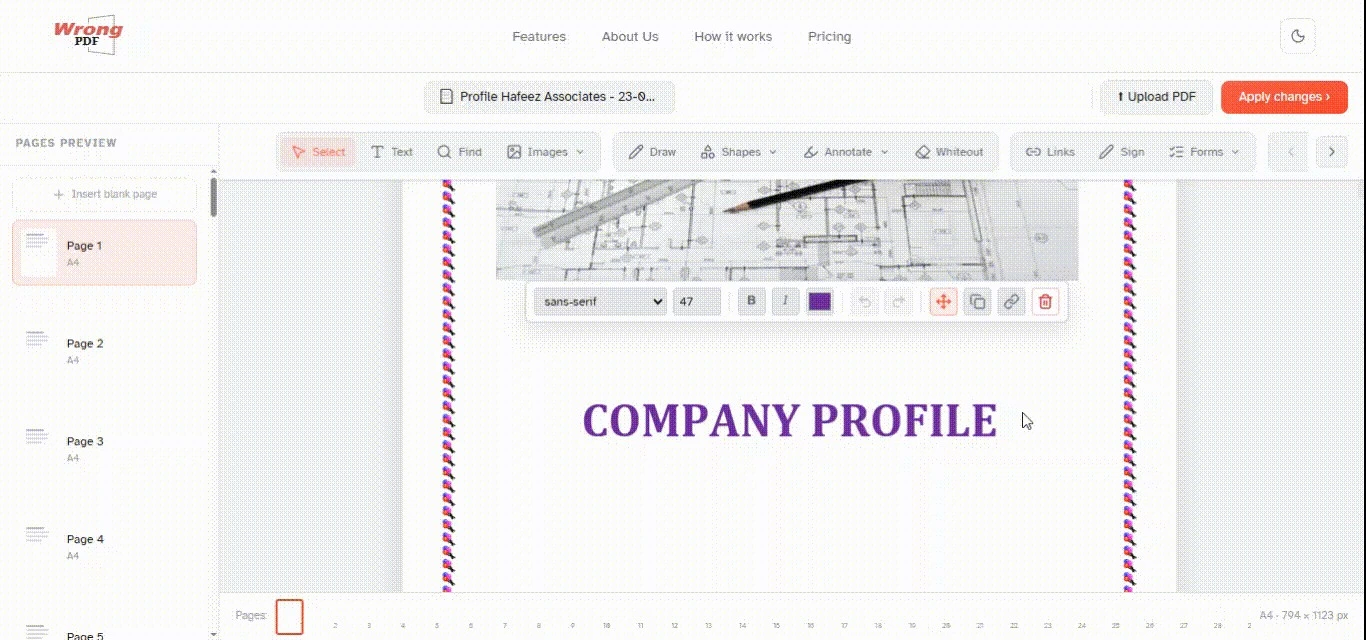
- 3
Change the existing text of a PDF
With the Select tool, click any existing text to start editing it. Change the font size, family and colour, or make it bold or italic.
wrongpdf.com/editor - 4
Add an image to a PDF
Open Images in the toolbar to add a new image, delete an existing one, or add a stamp. Pick a picture from your computer, then drag to move or resize it.
wrongpdf.com/editor
- 5
Sign or fill out PDF forms
Click any form field and start typing. Use the Text tool to type, and the Forms tool to add checkmarks, radio buttons or dropdowns.
wrongpdf.com/editor - 6
Add links and edit existing hyperlinks
Add links to web URLs or to other pages in the document, and edit the hyperlinks already in the PDF, with the Links tool.
wrongpdf.com/editor - 7
Whiteout existing text
Cover text with a white — or colour-matched — rectangle so the original content is no longer visible.
wrongpdf.com/editor
- 8
Add shapes
Use the Shapes tool to add rectangles, circles, lines or arrows. Change the border or fill colour, or adjust the size.
- 9
Find and replace
Find a word or phrase anywhere in the document and replace every occurrence at once.
- 10
Add form fields
Open the Forms menu and choose Text, Checkbox, Dropdown or Radio. Place the field on the page, then give it a name and, optionally, a default value.
- 11
Annotate pages
Strike through sensitive details, highlight important text, add sticky notes and exchange comments for quick document reviews. Click Annotate, choose a style, then select text on the page.
wrongpdf.com/editor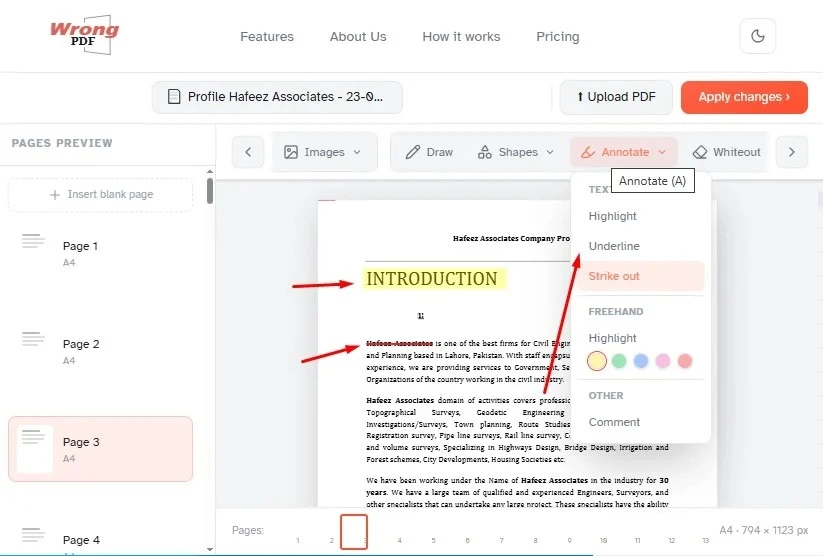
- 12
Save your changes
Click Apply changes in the top right, then download your edited PDF.
E-signatures
How to sign a PDF
Create an e-signature right in the document. Educators, real-estate and healthcare professionals, HR and finance teams use WrongPDF to sign sensitive documents without sending them anywhere.
- 1
Create a signature
Click Sign, then Add signature. There are four ways to make one: type your name and pick from over eleven handwriting styles, draw it with your mouse or trackpad, upload an image of it, or reuse a saved signature.
wrongpdf.com/editor
- 2
Draw or type it
Draw your signature on screen and choose the ink colour that suits the document, or type it and pick a style.
wrongpdf.com/editor
- 3
Place it on the page
Save, scroll to where it belongs, then click and drag. Resize by dragging the corners.
wrongpdf.com/editor
Quick guide
How to type on a PDF
- 1
Upload your PDF
Drop the file on the upload box, or click it to pick the document from your device.
- 2
Add text
Choose the Text tool and click anywhere on the page. Type, then drag the box exactly where you need it.
- 3
Apply and download
Click Apply changes, then download the edited PDF to your device.
Any device
How to edit a PDF on Mac, Windows or Chromebook
Open Safari, Chrome, Firefox or Edge and start editing — no download, no plugin, no app store. WrongPDF works exactly the same on Mac, Windows, Linux, iPad and Chromebook.
Watch it
Complete tutorial — how to use WrongPDF
What is WrongPDF?
WrongPDF is a free online PDF editor that lets you edit text, add images, signatures, checkboxes and annotations directly in your browser.
Is WrongPDF free to use?
Yes. WrongPDF is completely free — no hidden charges, no premium tier, no watermarks on your files.
Do I need to create an account?
No. You can open, edit and download PDF files without creating an account or signing in.
Can I edit the existing text in a PDF?
Yes. Click any text on the page to change its wording, font, size, colour or style. The original is covered and your new text takes its place in the exported file.
Can I add images and signatures to PDFs?
Yes. Add images from your computer, draw or type a signature, place stamps, and drag or resize anything on the page.
Is my PDF secure?
Your file never leaves your device. All processing happens inside your own browser tab — nothing is uploaded to a server or shared with third parties.
Does WrongPDF work on mobile devices?
Yes. WrongPDF works on desktop, tablet and mobile through any modern browser — Chrome, Safari, Firefox or Edge — on Windows, macOS, Linux, iPadOS, Android and ChromeOS.
✓ Free forever
Stop paying for PDF software.
Everything you need. Free. In your browser. Right now.